HTML (HyperText Markup Language) is the foundation of every website on the internet. Whether you want to become a web developer, web designer, or simply understand how websites work, learning HTML is the first step. The good news is that you do not need expensive software to start. You can write HTML code directly in Notepad and view the results in any web browser.
In this beginner-friendly guide, you will learn the basic code to write HTML in Notepad, how to structure a webpage, and how to add styles, images, links, forms, and scripts. These concepts are essential for anyone starting their journey in web development.
What is HTML and Why Should You Learn It?
HTML is a markup language used to create and structure web pages. Every website you visit contains HTML elements that define headings, paragraphs, images, buttons, and other content.
Learning HTML offers several benefits:
- Easy to learn for beginners
- Required for web development careers
- Helps understand website structure
- Works with CSS and JavaScript
- Builds a strong foundation for advanced technologies
Students enrolled in web development programs often begin with HTML before moving to more advanced technologies.
1. How to Use HTML Starter Code?
Every HTML document starts with a basic structure. This structure helps browsers understand how to display your webpage correctly.
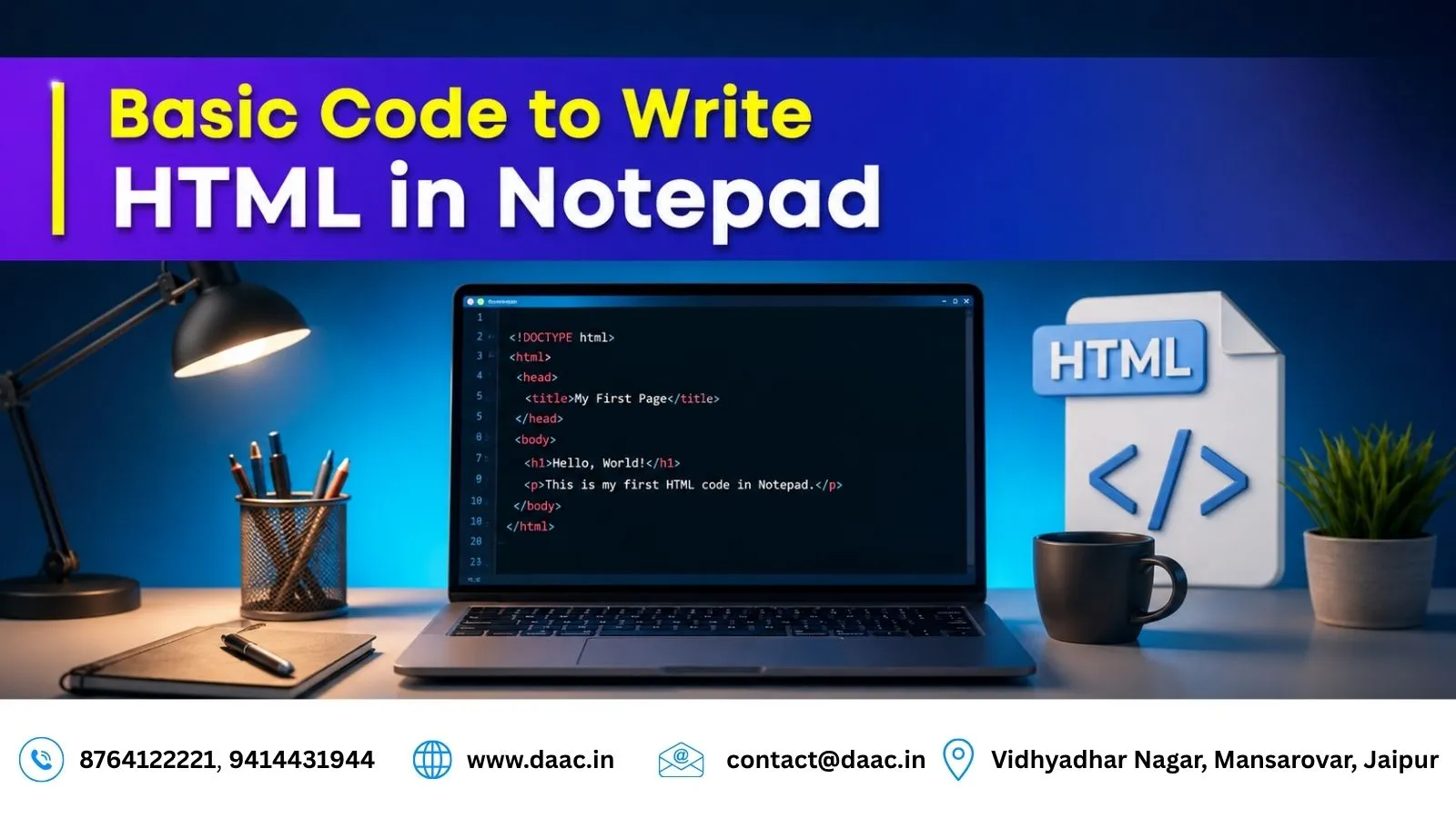
Basic HTML Starter Code:
<!DOCTYPE html>
<html>
<head>
    <title>My First Web Page</title>
</head>
<body>

<h1>Welcome to My Website</h1>
<p>This is my first HTML page.</p>

</body>
</html>
This code contains the essential components of an HTML document:
<!DOCTYPE html>defines the document type.<html>is the root element.<head>contains metadata and page information.<body>contains visible webpage content.
Understanding this structure is the first step toward building websites.
2. How to Link a CSS File?
CSS (Cascading Style Sheets) is used to style HTML pages and improve their appearance. Instead of writing styles inside the HTML file, developers often use external CSS files.
Example:
<head>
    <link rel="stylesheet" href="css/style.css">
</head>
This code connects the HTML page to an external CSS file called style.css located inside a CSS folder.
Benefits of external CSS include:
- Better code organization
- Faster website maintenance
- Consistent design across pages
- Improved scalability
Most professional websites use external CSS for design management.
3. How to Use Inline CSS in HTML?
Inline CSS is used when you want to apply styling to a specific element only.
Example:
<h1 style="color: blue;">Welcome to My Website</h1>
In this example, the heading text will appear blue.
Inline CSS is useful for:
- Quick styling changes
- Testing design ideas
- Small modifications
However, for large websites, external CSS is generally recommended.
4. How to Use Internal CSS in HTML?
Internal CSS allows you to place styles directly inside the HTML document using the <style> tag.
Example:
<head>
<style>
h1 {
    color: green;
    text-align: center;
}
</style>
</head>
Internal CSS is ideal for:
- Small projects
- Single-page websites
- Testing layouts
It helps keep styling separate from page content while remaining within the same file.
5. How to Use External CSS in HTML?
External CSS is the most common method used in professional web development projects.
Example:
<link rel="stylesheet" href="style.css">
Advantages include:
- Reusable styles
- Faster website loading
- Easier maintenance
- Better code readability
Most responsive websites use external CSS files to manage design efficiently.
For students interested in learning advanced website design concepts, the Web Designing Course in Jaipur can provide practical training in HTML, CSS, Bootstrap, and responsive design techniques.
6. How to Use Anchor Tags in HTML?
Anchor tags are used to create hyperlinks that allow users to navigate between web pages.
Example:
<a href="https://www.google.com">Visit Google</a>
Open a link in a new tab:
<a href="https://www.google.com" target="_blank">Visit Google</a>
Anchor tags are essential for:
- Website navigation
- External links
- Internal page linking
- User experience improvement
Proper linking helps users access information quickly and efficiently.
7. How to Use the Image Tag in HTML?
Images make websites more attractive and engaging.
Example:
<img src="image.jpg" alt="Sample Image">
Important attributes include:
srcspecifies the image path.altprovides alternative text for accessibility and SEO.
Best practices:
- Use optimized image sizes.
- Add descriptive alt text.
- Maintain image quality.
Images play an important role in modern website design and user engagement.
8. How to Use Background Images?
Background images are usually applied through CSS.
Example:
body {
    background-image: url('background.jpg');
    background-size: cover;
}
This code applies a full-screen background image to the webpage.
Background images are commonly used for:
- Landing pages
- Portfolio websites
- Business websites
- Hero sections
When used correctly, they improve the overall visual appeal of a website.
9. How to Use the Script Tag in HTML?
JavaScript adds interactivity and dynamic functionality to websites.
Example:
<script>
alert("Welcome to my website!");
</script>
You can also link an external JavaScript file:
<script src="script.js"></script>
JavaScript enables features such as:
- Form validation
- Interactive menus
- Sliders and animations
- Dynamic content updates
Learning JavaScript after HTML and CSS is a natural progression for aspiring web developers.
For those planning to build complete websites and web applications, the Web Development Course in Jaipur covers HTML, CSS, JavaScript, databases, and modern development frameworks.
10. How to Use the Form Tag in HTML?
Forms are used to collect information from users.
Example:
<form>
    <label>Name:</label>
    <input type="text" name="name">

    <label>Email:</label>
    <input type="email" name="email">

    <label>Message:</label>
    <textarea></textarea>

    <button type="submit">Submit</button>
</form>
Forms are commonly used for:
- Contact pages
- Registration pages
- Login systems
- Feedback collection
Understanding forms is essential because user interaction is a key component of modern websites.
Why Learning HTML is Important in 2026
Despite the emergence of advanced frameworks and AI-powered development tools, HTML remains a fundamental technology for web creation. Every website, web application, and landing page relies on HTML structure.
Current industry trends show that companies continue to seek professionals with strong front-end development skills. Learning HTML can open opportunities in:
- Web Designing
- Front-End Development
- UI/UX Design
- Digital Marketing
- Freelancing
Mastering HTML provides a strong foundation for future learning and career growth.
Conclusion
Learning the basic code to write HTML in Notepad is the first step toward becoming a web developer or web designer. HTML helps structure web pages, while CSS enhances appearance and JavaScript adds functionality. By understanding starter code, CSS integration, images, forms, links, and scripts, beginners can confidently start building websites.
As you continue learning, practice regularly and create small projects to strengthen your skills. Consistent practice is the fastest way to become comfortable with HTML and prepare for advanced web technologies.
FAQs
1. Can I write HTML code in Notepad?
Yes, Notepad is one of the simplest tools for writing HTML code. Save the file with a .html extension and open it in a browser.
2. What is the difference between HTML and CSS?
HTML structures webpage content, while CSS controls the design, layout, colors, and visual appearance of that content.
3. Is HTML enough to build a website?
HTML can create a basic website, but CSS and JavaScript are usually required for modern design and functionality.
4. How long does it take to learn HTML?
Most beginners can learn HTML fundamentals within a few weeks through regular practice and project-based learning.
5. What should I learn after HTML?
After HTML, you should learn CSS and JavaScript. These technologies help create responsive and interactive websites.